User Favorite Panel for iDempiere / LogiliteERP

Note: This feature yet not in iDempiere. Ticket IDEMPIERE-3340 is created to add this feature in iDempiere.

Dashboard Panels is a great way to improve the usability of the iDempiere or Adempiere. You can give relevant information or quick access to important functionality for users from the dashboard. The goal of this tutorial is to show how can create your favorite menu in tree structure and organize more menu in better way inside an logiliteERP or iDempiere or Adaxa Suite (ADempiere) Dashboard Panel.

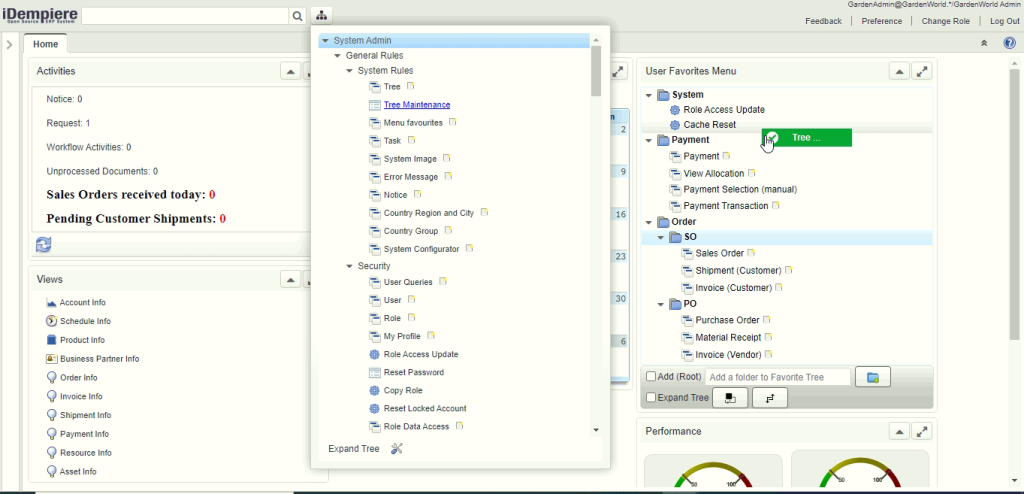
In below snap of Logilitte ERP, User Favorite Menu dashboard widget is shown on right side.

Tree Favorite View in Dashboard
Figure 1. Sample User Favorite panel with Drag & Drop menu item

LogiliteERP have Role based default favorite tree feature which is not in iDempiere.

  • The purpose of this default tree is to avail default menu for a role.
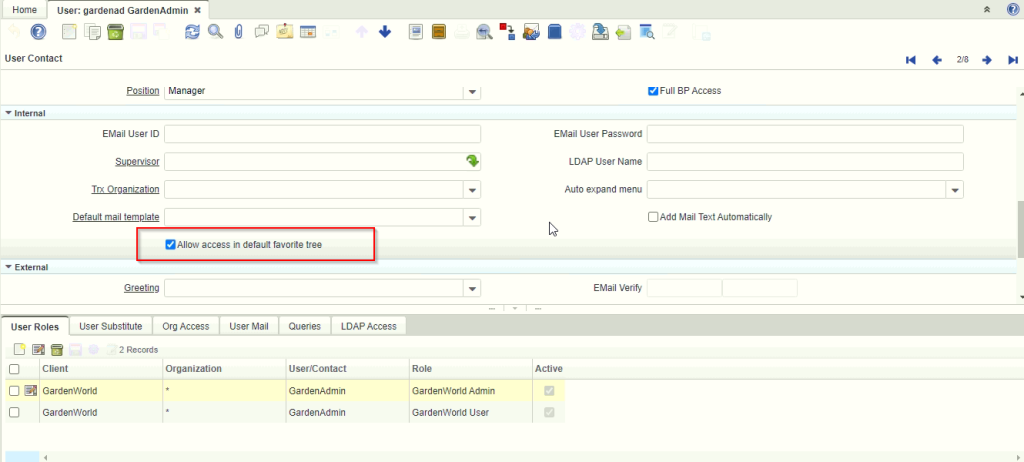
  • Only those user can change default favorite tree who are granted access by flag “Allow access in default favorite tree” on user window. User have not access to change default tree, still can modify his own tree.

    Allow access to User for default favorite tree
    Figure 2. Allow access to User for default favorite tree

LogiliteERP/ iDempiere User Favorite Operations:

Where [ iDempiere ] mentioned, feature is available in iDempiere version of favorite tree.

  • User can create summary/directory node by adding text on text-box and do Enter or click on Add folder button [ iDempiere ].
  • If Add (Root) checkbox is marked then it always new node created as root level. Other wise node created under the current selected node [ iDempiere ].
  • Marking Expand Tree checkbox expands all the node of the tree. Unmarked Expand Tree collapse all the nodes [iDempiere].
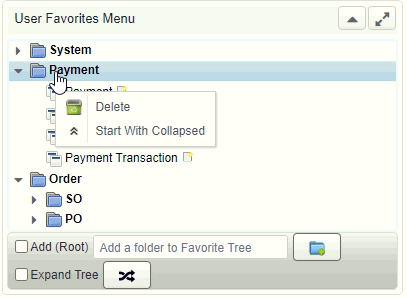
  • Right clicking on summary/directory node show context menu like [Figure 3][iDempiere]:
    • Delete : Deleting that node and its all child nodes too.
    • Start with Expanded : Mark summary node as default expanded.
    • Start with Collapsed : Mark summary node as default collapsed.
  • Fore renaming summary/directory node double click on it.  Rename dialog pop up which allow to change the node name [ iDempiere ].
  • clicking on menu item open window, process or report [ iDempiere ].
  • In menu item for windows, right side there is new button icon. clicking on it open window with new record [ iDempiere ].
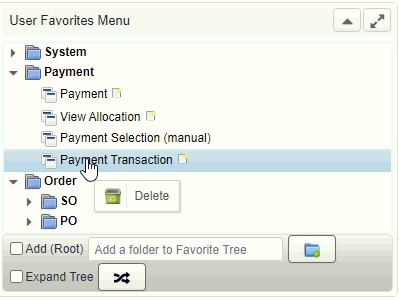
  • User can right click on menu node then it will show Delete option for deleting that menu item from tree. [ Figure 4] [ iDempiere ]
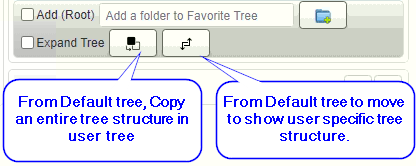
  • User can copy entire default tree structure to user specific tree. It will remove existing user specific tree structure if exists and copied default tree. [Figure 5]
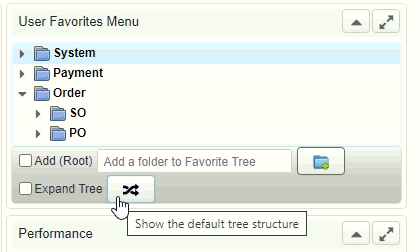
  • User can navigate from default tree to user based tree and vice versa.
  • Inside tree user can move any node to any where. If menu item is already exists in same level then it will not allowed to insert duplicate node.

Priority to viewing favorite tree while login:

  1. User login to check if user specific tree exists then view that tree structure.
  2. User specific tree does not exists then view default tree structure.
  3. If both tree structure not exists then viewing user tree as empty structure.
Figure 3. Summary node context menu items
Figure 4. Delete menu item from tree
Figure 5. Default view to clone tree and move to user specific tree
Figure 6. Move to default view

Best Regards
Sachin Bhimani @ Logilite Technologies

Share Button

How to apply iDempiere database migration script in windows

iDempiere is fully supporting Windows hosting even though there are few servers hosted in windows. Latest sync script written in bash script, we can not use same in windows. But iDempiere database migration script can be applied by an ant tool. Purpose of this blog is to guide for applying iDempiere database migration script in window using ant tool.

When it comes to DB migration in windows, recently not much work done to support migration batch script. But still iDempiere has tools to achieves migration using ant script on windows. Here I would like to mention how this hidden tool used.

Perquisite to perform this steps, you needs to have Apache-ant installed and configured. You can follow steps to do same from Apache ant official page.

How to migrate iDempiere maintenance branch in windows.

iDempiere support latest release for a year and which I am referring as maintenance release. You may like to keep your server up to date if you are hosting

When I am writing this blog,  latest maintained version is 7.1 and so assuming  is to apply it as example.

  1. From migration-history directory, Copy postgresql.properties.template as postgresql.properties for PostgreSQL DB or oracle.properties.template  as oracle.properties for Oracle to migration directory.
  2.  Configure following properties
    1. postgresql.home – Path to PostgreSQL installation
    2. postgresql.database – Database name
    3. postgresql.user – Database user
    4. postgresql.password – PostgreSQL user password
    5. postgresql.host – PostgreSQL server host
    6. postgresql.port – PostgreSQL server port default is 5432

    My Property file looks as below
    #PostgreSQL home folder
    #Example Value:
    # Windows - postgresql.home=C:/pgsql/8.2.13-1<
    # Linux - postgresql.home=/usr/lib/postgresql/8.3
    postgresql.home=C:/Program Files/PostgreSQL/12/
    #PostgreSQL pgdata folder
    #Example Value:
    # Windows - postgresql.pgdata=C:/pgsql/8.2.13-1/data
    # Linux - postgresql.pgdata=/var/lib/postgresql/8.3/main
    postgresql.pgdata=
    #adempiere database name
    postgresql.database=id71t

    #adempiere database login
    postgresql.user=adempiere

    #adempiere database password
    postgresql.password=adempiere

    postgresql.host=localhost
    postgresql.port=5432

  3.  Open command prompt
  4. Change directory to migration\i7.1\postgresql or migration\i7.1\oracle directory.
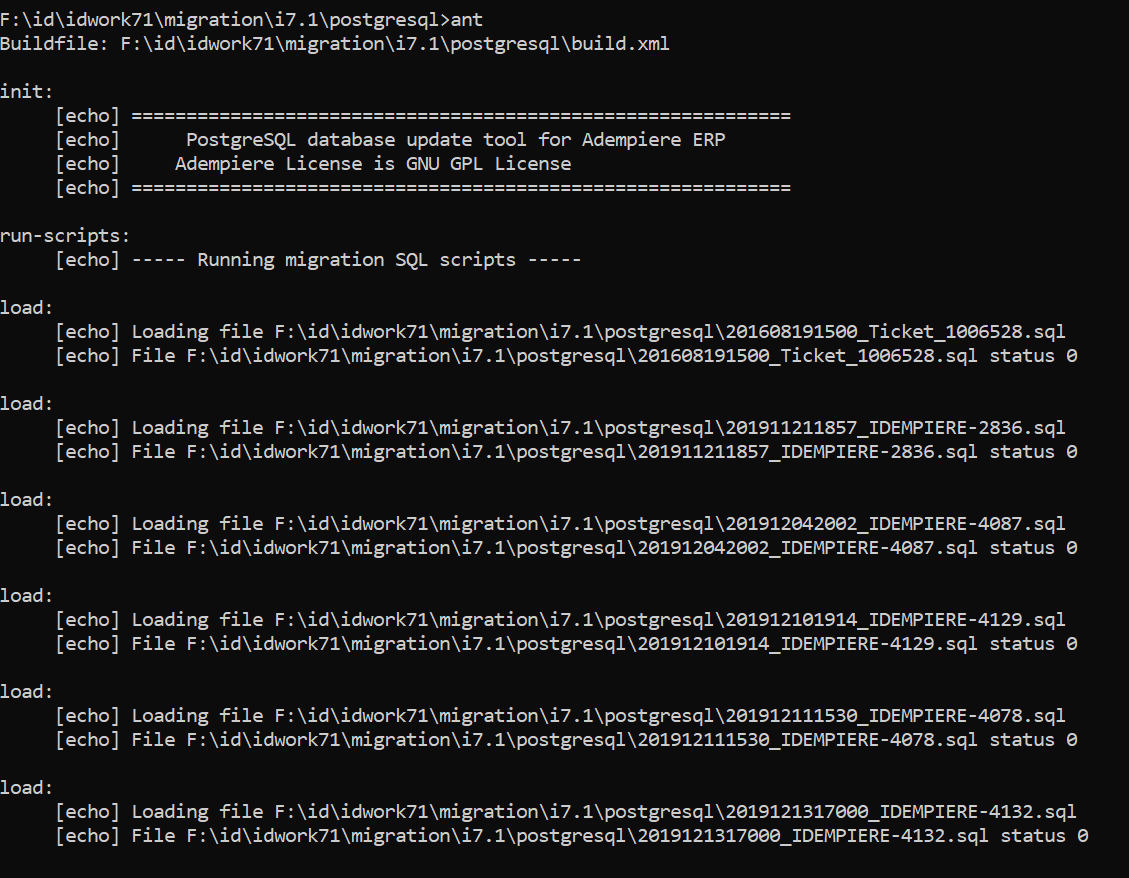
  5. Run command “ant”apply iDempiere Database Migration Script in windows
  6. Verify that all SQL are success, if any failure, you may needs to fix those migrations manually. Status 0 mean no errors.


How to migrate iDempiere from older release to latest in windows 

For example if you want to migrate from 5.1 to 7.1, you needs to apply migration script of 5.1, 5.1z , 6.1, 6.1z,  6.2, 6.2z and 7.1. We don’t have batch automation to achieve this at moment.

Now if you go to migration\i5.1z\postgresql and run ant command, It will throw error “Buildfile: build.xml does not exist!“.

To fix above error, copy build.xml from latest release version to migration script directory which you want to apply. iDempiere maintain build.xml file on maintenance version migration script directory only.

Share Button

Metabase with ADempiere/iDempiere Dashboard Panel

The goal of this tutorial


Dashboard Panels is a great way to improve the usability of the WebUI. You can give relevant information or quick access to important functions for users right from the main page. The goal of this tutorial is to show how you can create your charts, Tables & information from Metabase to ADempiere/iDempiere Dashboard Panel.

Prerequisition


  • DB setup [ Here we use PostgreSQL ]
  • Metabase Jar [ You can download from HERE or Refer Metabase Website ]
  • ADempiere/iDempiere Server

What is Metabase?


Metabase is an open source business intelligence tool. It lets you ask questions about your data and displays answers in formats that make sense, whether that’s a bar graph or a detailed table.

Start Metabase server
The most basic way of running Metabase is to open up a terminal and use Java to launch the application. This is the only command you’ll need:

java -jar metabase.jar

It’s that simple. This will start the Metabase application using all of the default settings. You should see some log entries starting to run in your terminal window showing you the application progress as it starts up.

This will launch a Metabase server on port 3000 by default.

Metabase requires that you have Java 7 or higher available on your system. If you want to learn more about how to run Metabase using the .jar file to click HERE.

Setting up Metabase

Start Metabase up for the first time and you’ll see this screen:Welcome to Metabase screen
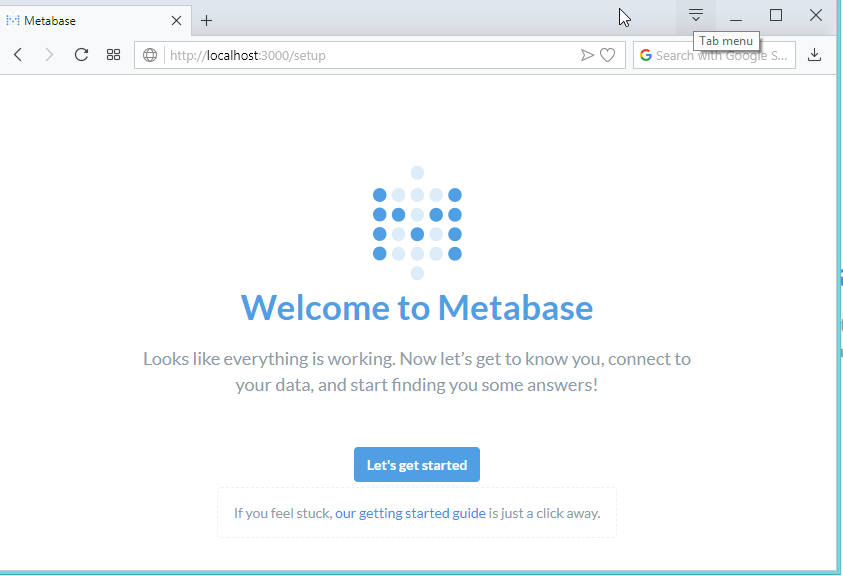
Go ahead and click Let’s get started.

Setting up an admin account

The first thing you’ll need to do is set up an admin account. The account you create when you first install Metabase is an admin account by default — handy! If you’ve installed Metabase on a production server, you should be really careful to remember the password for this account since it will be used to add other users, connect to databases, set up email, and more. You can also create additional admin accounts later.

For now, let’s just create an account for ourselves to explore Metabase. Type in your info, and when you’re ready to continue, click the Next button.Accounting Setup
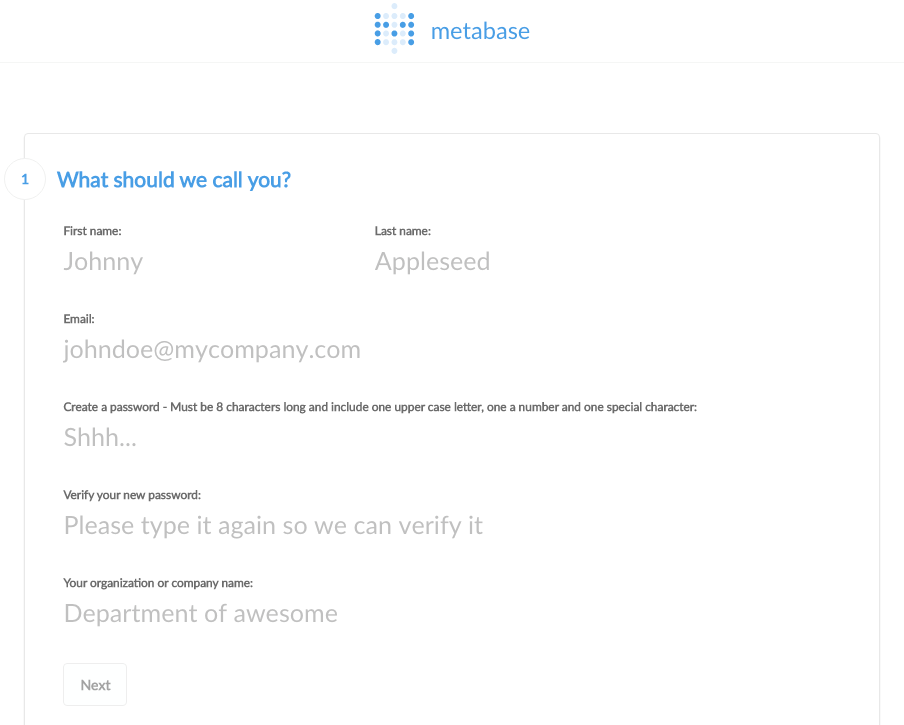
Gathering your database info

At this point, you’ll need to gather some information about the database you want to use with Metabase. We won’t be able to connect to your database without it, but you’d like to deal with all of this later, that’s okay: just click I’ll add my data later.

If you’re ready to connect, here’s what you’ll need:

  • The hostname of the server where your database lives
  • The port the database server uses
  • The database name
  • The username you use for the database
  • The password you use for the database

If you’re using Heroku, here are instructions on how to get this information. If you’re an Amazon RDS kind of person, you can follow these instructions.

If you don’t have this information handy, the person responsible for administering the database should have it.

Connect to your database

Now that you have your database info you can connect to your database. Just go ahead and put your info into this form and click Next.
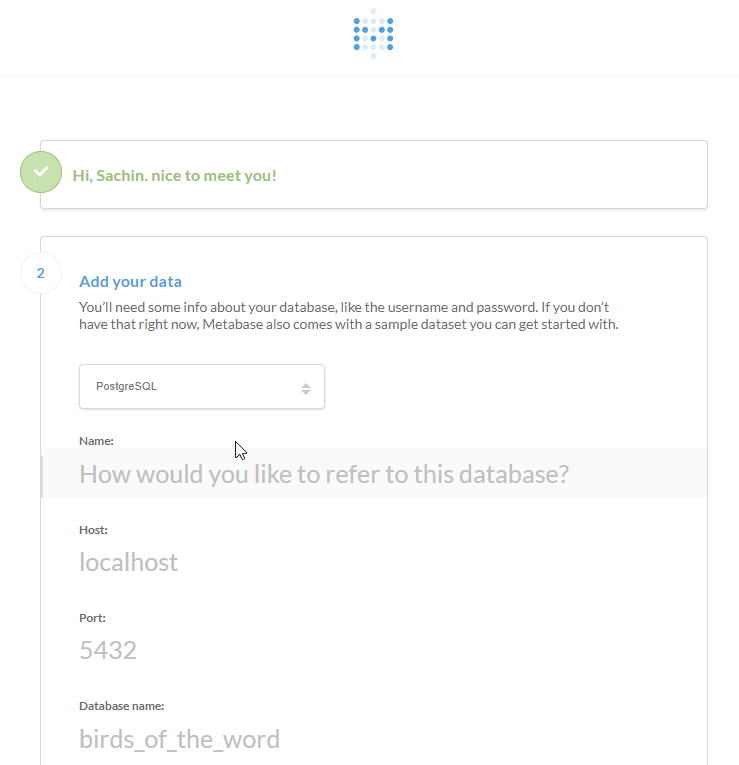
Connect To Your Database

Usage data preferences

One last quick thing that you’ll have to decide is if it’s okay for Metabase to collect some anonymous info about how you use the product.Usage Data Preference
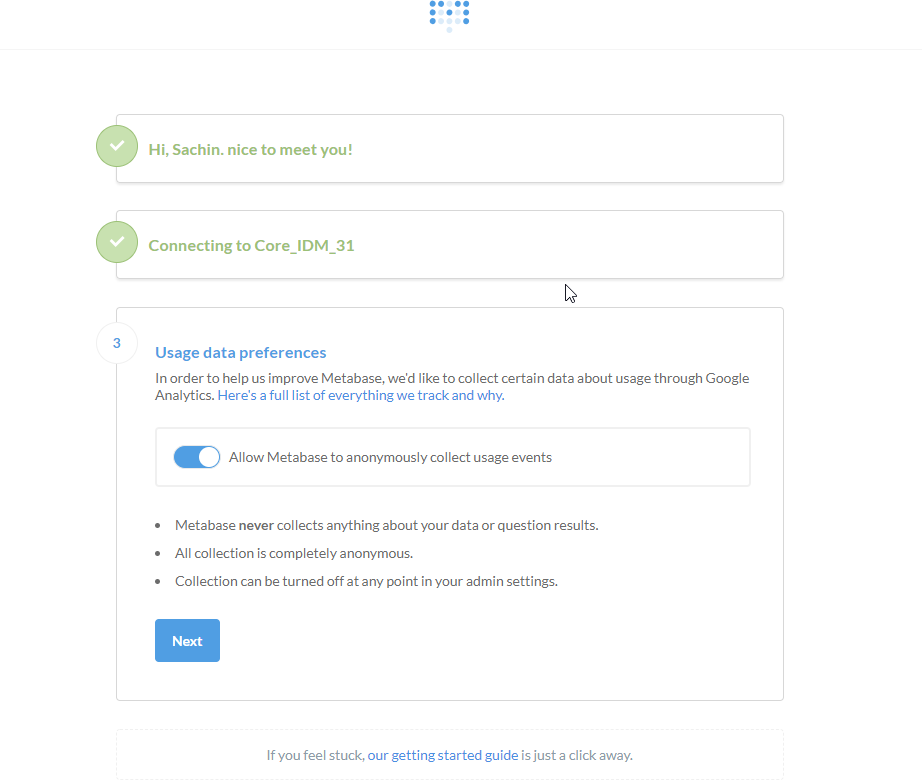
If you’re ready to start using Metabase, go ahead and click Next. Once you’re done here simply follow the link to Take me to Metabase.

The homepage

Go ahead and log in to Metabase and the first thing you’ll see is the activity feed. Right now there’s not much there, but it’ll soon get full as you and your teammates do things in Metabase.
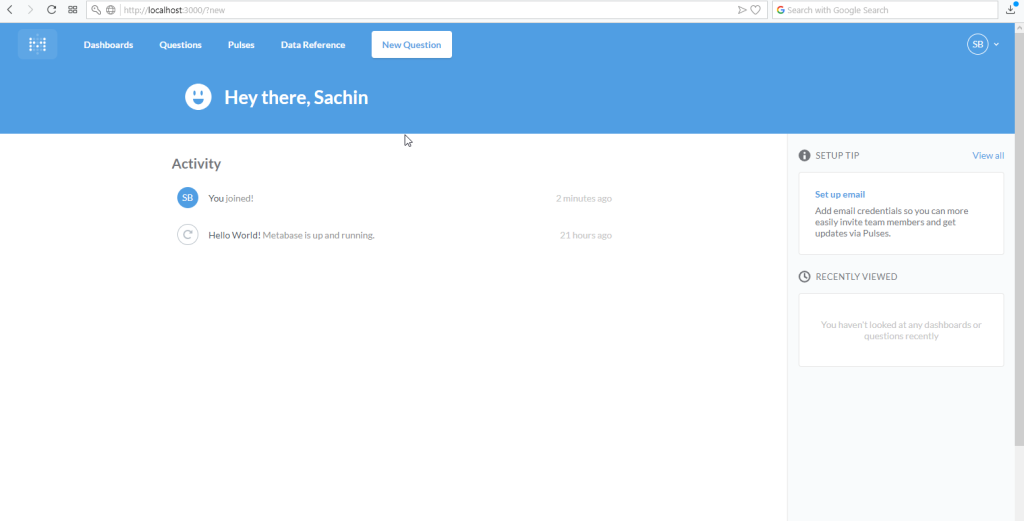
Metabase Homepage

Creating a dashboard

Go to Dashboards panel and click on (+) plus sign for add new dashboard as the right side of the window.Add Dashboard

You’ll see a dialog that prompts you to create a new one and give it a name and description. Name it anything you’d like. We’ll call ours “Order Info”.Create Dashboard
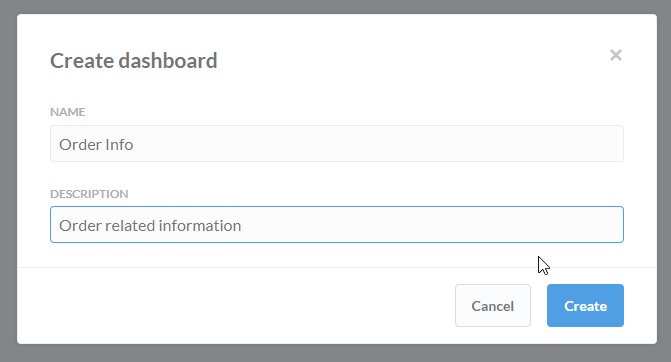
Dashboards are great when you have a set of questions and answers that you want to view together.

Our first question

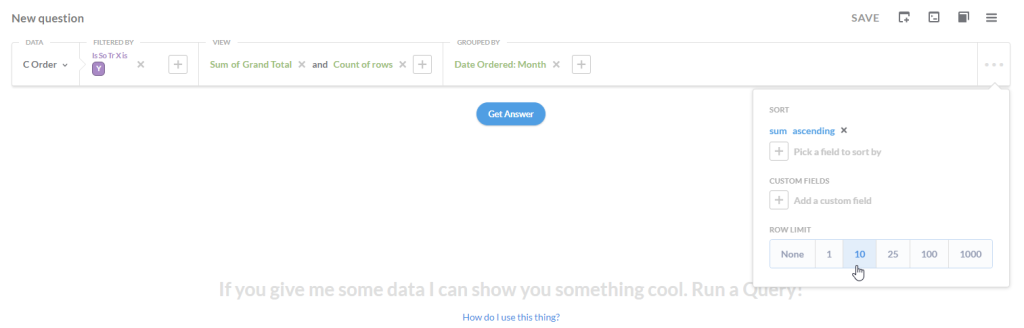
We’re going to ask a question about the C_Order table in the Core_IDM_31 database, so we’ll search like C Order in the drop-down. The Orders table has a bunch of data.
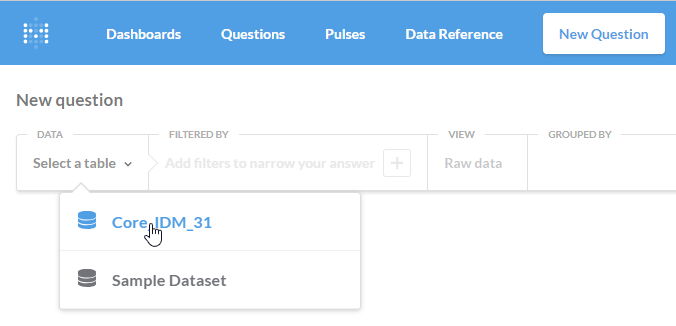
New Question

Let’s start with the following constraint:

  • Orders of Sales Transaction.
  • Data show should be count the no of orders and summation of the grand total based on grouping of Date Ordered In Month wise.
  • Sorting by Ascending order of grand total summation wise
  • Retrieve 10 records only

Question Constraint

If you just want to see the result that’s in this table, you can click Get Answer and see resulted data.

Changing the visualization

Luckily enough, Metabase can present the answers to your questions in a variety of ways. To change the visualization, just select one of the options from the Visualization drop-down menu, which is in the top-left of the screen, above the table. In our case choose Table.
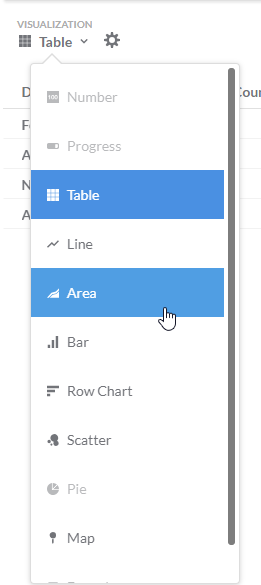
Visualization

Now save the Question. Let’s our case we say Name: “Month wise Order counts & Total Amt” and description as you want. and Save them.Save Question
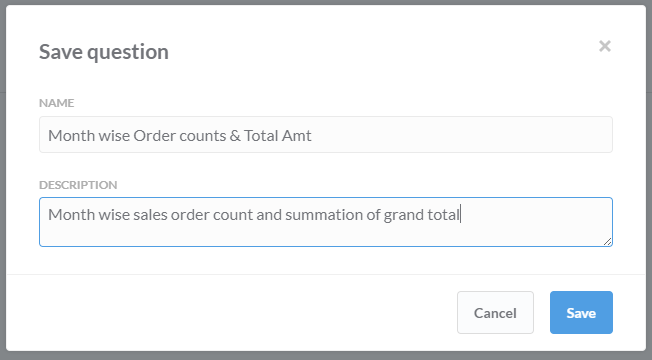
Now need to add your question into Dashboard. Go to the dashboard in which you want to add the question. first select dashboard [our case “Order Info”] and click on ( + ) plus sign to add a Question. Select the existing saved question.
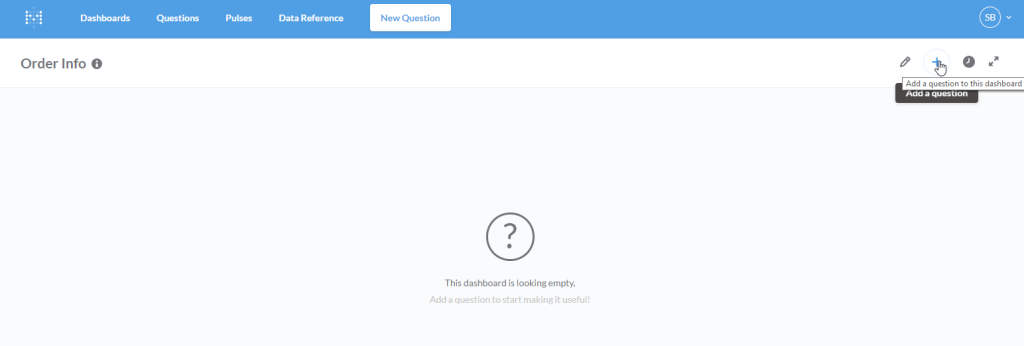
12_AddQuestionInDashboard

Once question selected then dashboard gives to customization height & width as per your preference.
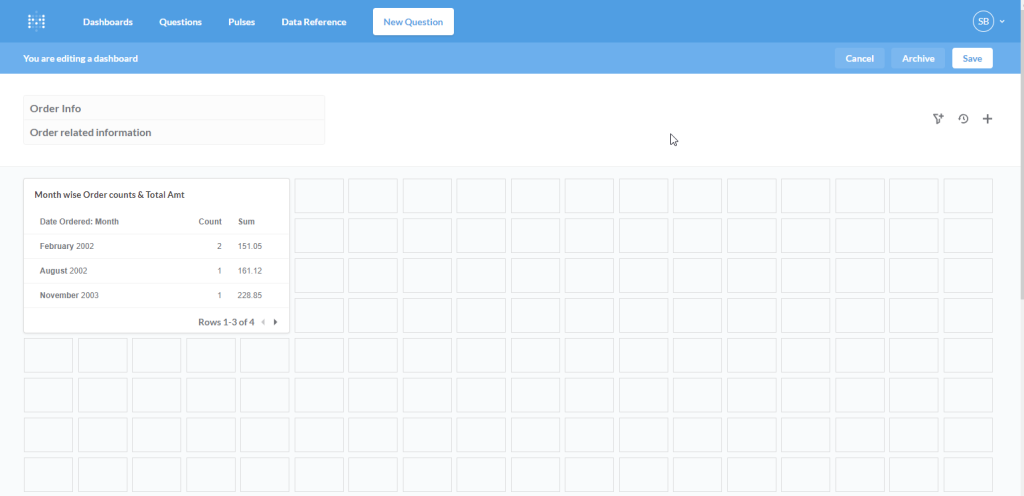
Dashboard Question Looks

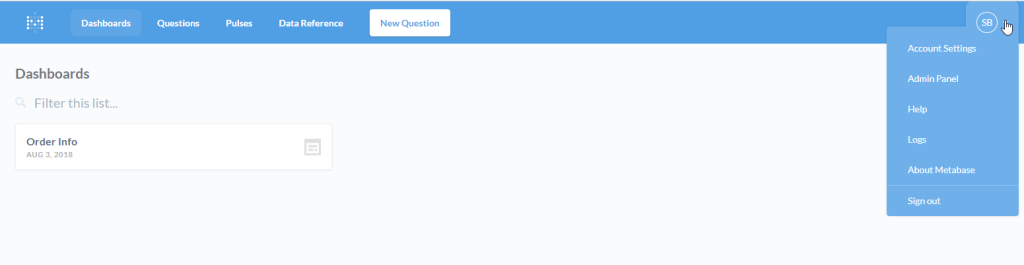
Up to here, we created a new dashboard and new question now time to expose to use outside the metabase. So goto Top-Right corner a select down arrow to populate the list and select “Admin Panel”.Admin Panel Select
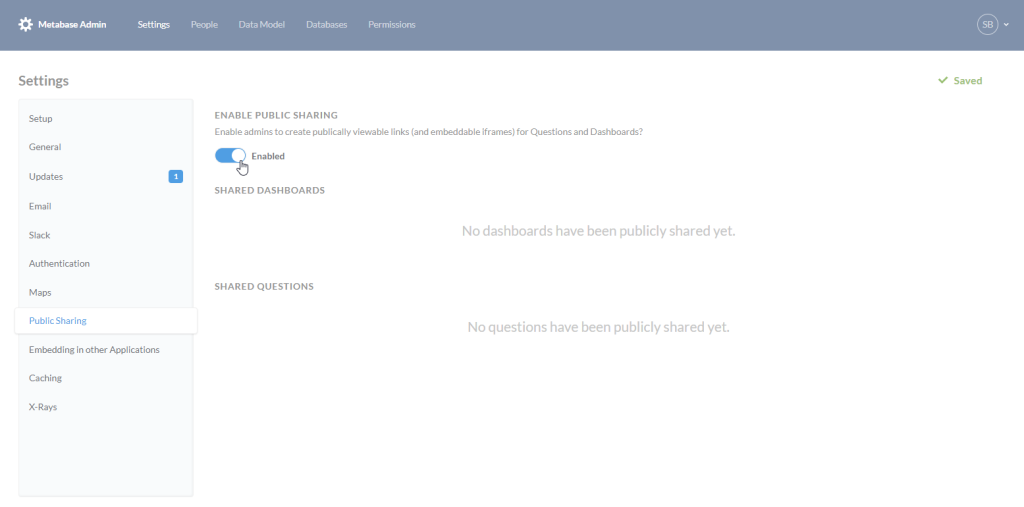
In the Admin Panel, Settings in select Public Sharing and make enable public sharing.Enable Public Sharing
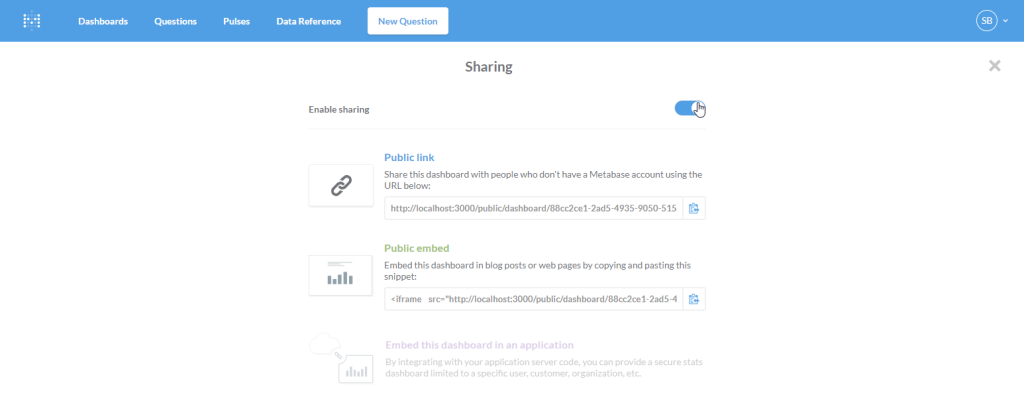
Need to go Dashboard window, do Exit Admin Panel and select dashboard you want to share the outside. In Dashboard Right side click on Sharing and embedding button and make Enable sharing toggle button ON.Export Dashboard
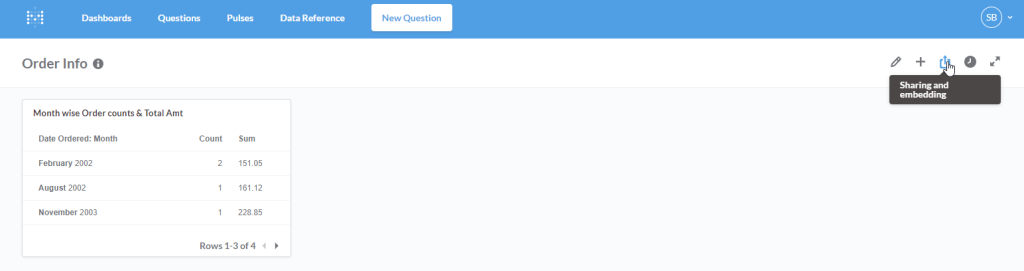
Enable Sharing

There is shown Public Link, Make copy & paste in your browser to see the visualization as you created.
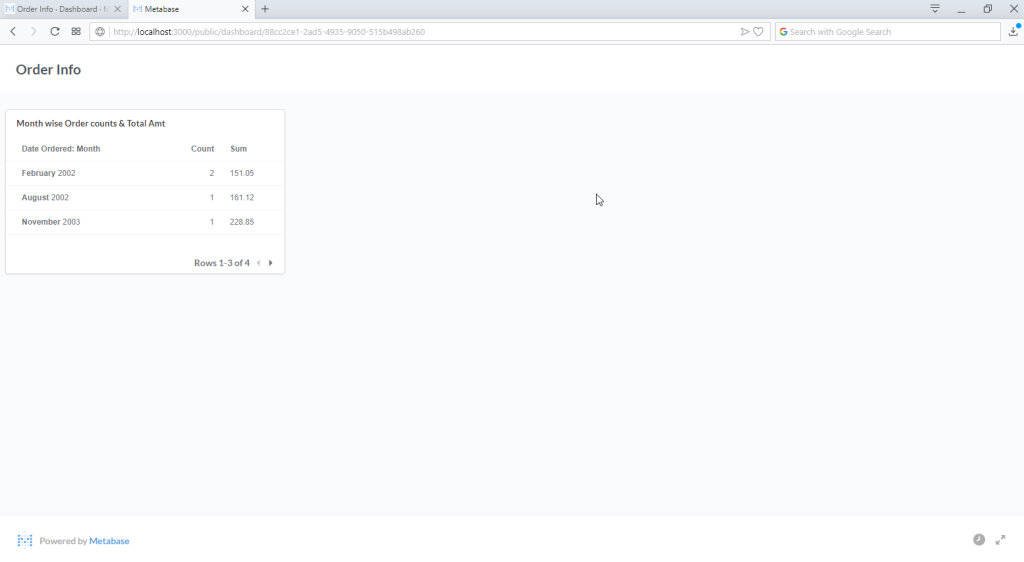
Hit Url In Browser

Embedded with ADempiere/iDempiere

Now time to how to display in ADempiere/IDempiere dashboard. First, make copy the Public embed code. Now goto ADempiere/IDempiere. we need to create Dashboard Content either you can create in System or Client role. Lets we create in client and paste copied code into the HTML field. Save them.
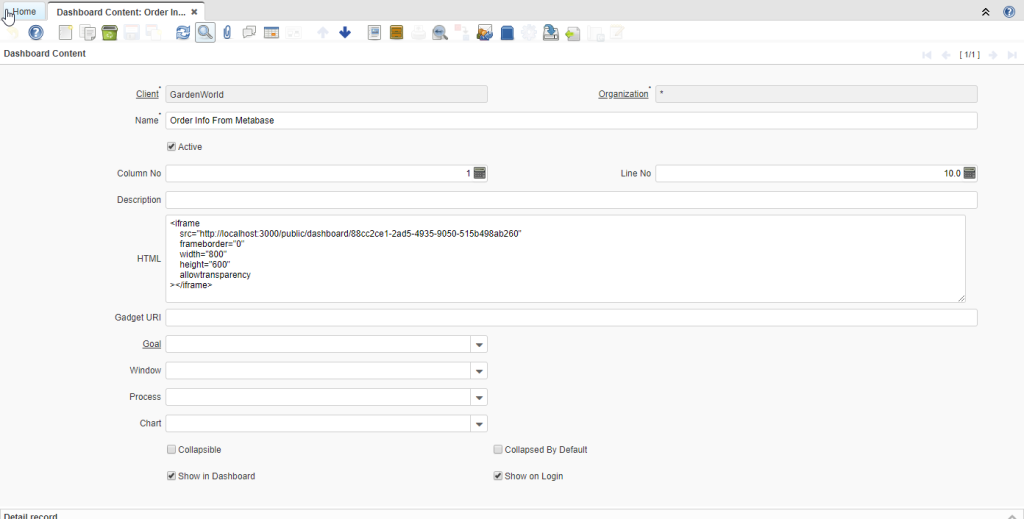
IDempiere New Dashboard Content

Now, Make Role access update, Cache reset and Re-login to the system. Now you have seen the metabase dashboard in here.
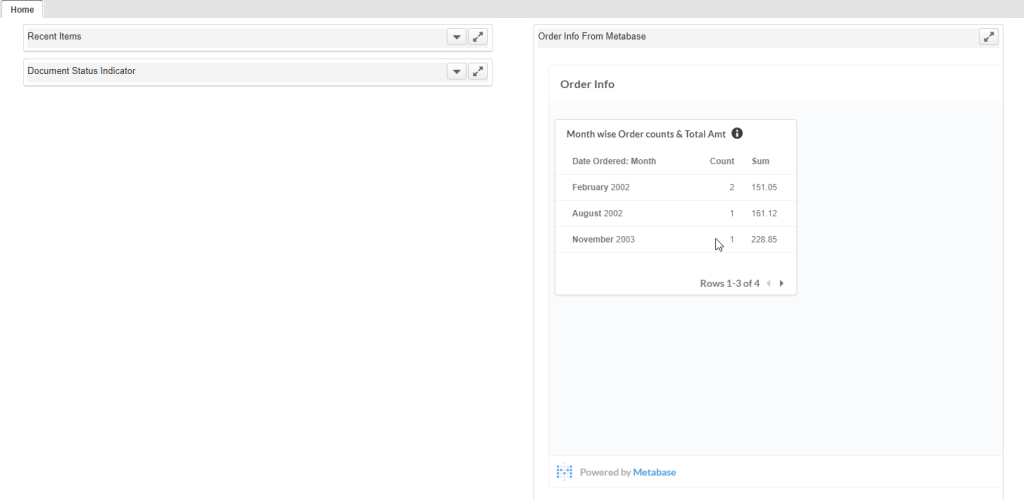
IDempiere Dashboard

That’s it!

You’ve done really well. You now have a dashboard with your question that you can share as what you want!

With Regards,
Sachin Bhimani @ Logilite Technologies

Share Button

iDempiere Quick Form

Since iDempiere is forked from Adempiere, iDempiere has added many features to increase user productivity. This blog introduce iDempiere features which can improve user experience on browsing data and increase work efficiency.


About iDempiere:

iDempiere is an Open Source Enterprise Resource Planning (ERP) software package. Which helps companies satisfying their ERP needs and offer flexibility to customize. iDempiere has out of the box features which required to run your business. In this blog will introduce new features named Quick Form to iDempiere which is developed by Logilite. This feature is an original part of Adaxa Suite and Adaxa has allowed us to convert it to the iDempiere feature. Logilite has additionally added call out support in Adaxa’s quick entry form.


iDempiere Quick Form :

iDempiere Quick Form is a feature for user who likes to work only with keyboard and allow fast data entry. iDempiere Quick Form provides full navigation support with a keyboard. Also, quick form supports keyboard shortcut to perform operations.

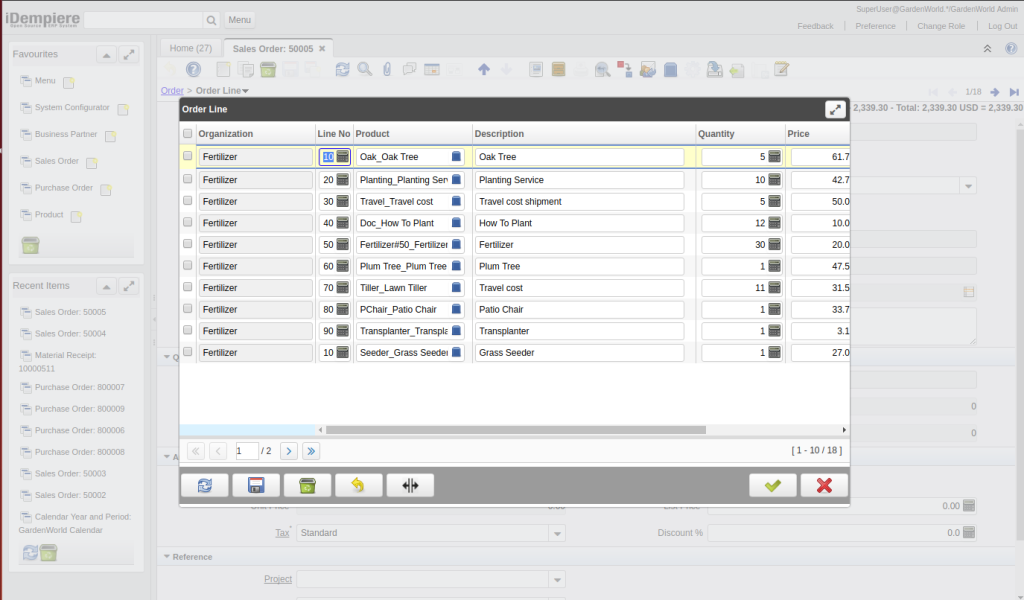
Below is a snap of iDempiere Quick Form.

iDempiere Quick Form panel
Figure 1: Sample Quick Form panel
  • The Quick Form provides a handy feature like a user can navigate by using arrow keys, navigate to the cell user want to modify and make the changes. A nice thing is a record will be automatically saved once the user navigates to next record, or a user can save record by pressing “Alt + S” keys together or by clicking save button.
  • If user navigating down from the last record, new record will auto created.
  • Pressing  “home” key will navigate to the first record of the current page.
  • Quick Form has pagination feature, DOWN arrow key on last record allow to navigate to next page and UP arrow key on first record allow to navigate to previous page. Alternatively quick form has pagination panel to jump to page or navigate using mouse.
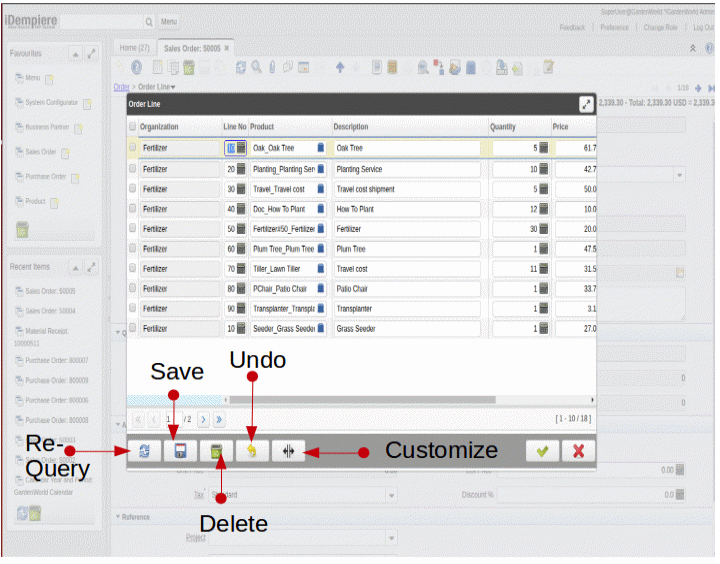
  • A user can also undo change by pressing “Alt + Z” keys together or by using “Undo” button for the current record if modified.
  • “Alt + D” keys use for deleting current record and multiple records can be deleted by selecting checkbox of record’s and pressing “delete” button.
  • A user can re-query records by pressing “Alt + E” keys together or by using “Re-Query” button.
  • To close Quick Form after saving last change, user can directly close Quick Form using “OK” button. or use “Alt + K” keys.
  • For close Quick Form without saving last change user can directly close Quick Form using “Close” button. or using  “Alt + X” keys.
  • Instead of clicking on toolbar button, user can using “Shift + F2” key to open current tab as quick editing form.
  • From Header tab, If user want to open child tab quick form OR moving to header quick form current focused record to it’s child tab quick form then use “Ctrl + F2” key.
 iDempiere Quick Form Panel Buttons
Figure 2: Quick Form Panel Buttons
  • A user also can customize fields order and width of columns by pressing “Alt + L” keys or by using “Customize” button.
  • All user can have their own set of configuration. Idempiere [Logilite] also allows a user to save width of a column, once you adjust the width in grid, before saving, select checkbox “Save Column Width”.  Selecting Save Column Width checkbox, persist current column width in grid layout.


Step to configure Quick Form for the tab:

Quick form works per tab. Once quick form field are configured, on windows tab, quick form button will be enabled. For configuring quick form field, Follow below steps

  •  Log in as ‘System User’.
  • Go to “Window, tab and field” and navigate to a window which you want to add support for quick form
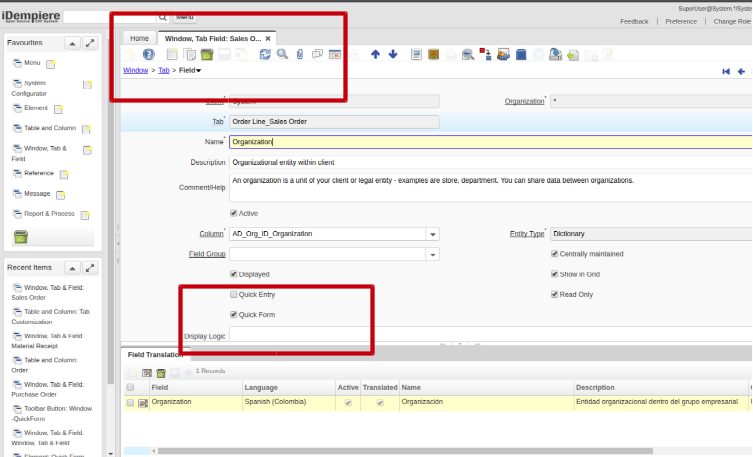
  • On Window->tab->Field, you found the checkbox “Quick Form”. Marking this checkbox make the field visible in Quick Form.
iDempiere Quick Form panel
Figure 3: Configuring Quick Entry field.
  •   Tick “Quick Form” checkbox for the fields you want to see in “Quick Form” panel and save the changes. (as shown in Figure 3)
  • If you want to test the immediate effect, do cache reset.
  • Quick Form toolbar button is enabled when tab has at least one field configured as Quick Form
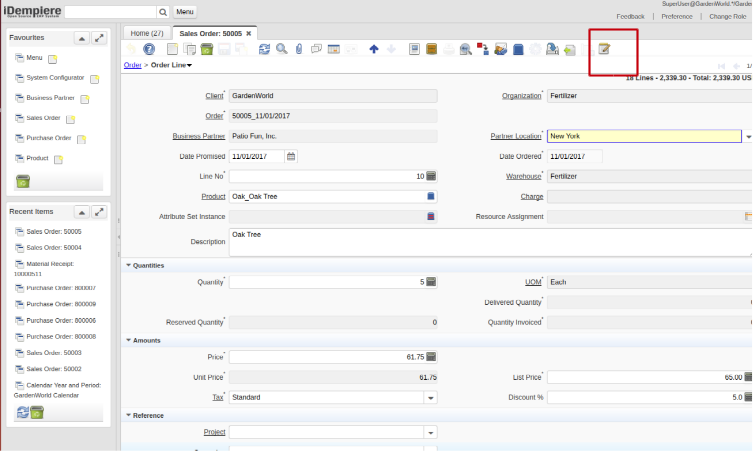
  • Now login to ‘Client User’ and open configured tab. In a toolbar, you will find the “Quick Form” button as editor icon, click on the button to open “Quick Form” panel
Sample Quick Form panel
Figure 4: Sample Quick Form toolbar button

Best Regards
Sachin Bhimani & Parth Ambani @ Logilite Technologies
Share Button

Budget Journal – Enhanced Adempiere/iDempiere Budget module

Budgeting is tedious work when you do not have right tool. Though budgets are calculated based on historical data, there are different formula per expenses to derive. it is always viable to automate calculation of budget. For iDempiere/Adempiere first step was taken by Guru Red1 to automate calculation of budget dynamically. That was great enhancement as defining rules will warn user for over budget transaction. Logilite take red1’s work to forward and add Budget Journal features.

All accounts love journal as that give more control on posting. So this work was to add automation of creation of journal for budget based on defined rules. Now Journal is add important feature of tracking history of budget by posting against GL account also allow to review and correct budget manually too.

Red1’s work for dynamic budget validation can be referred here Budget.pdf

Budget Planning :

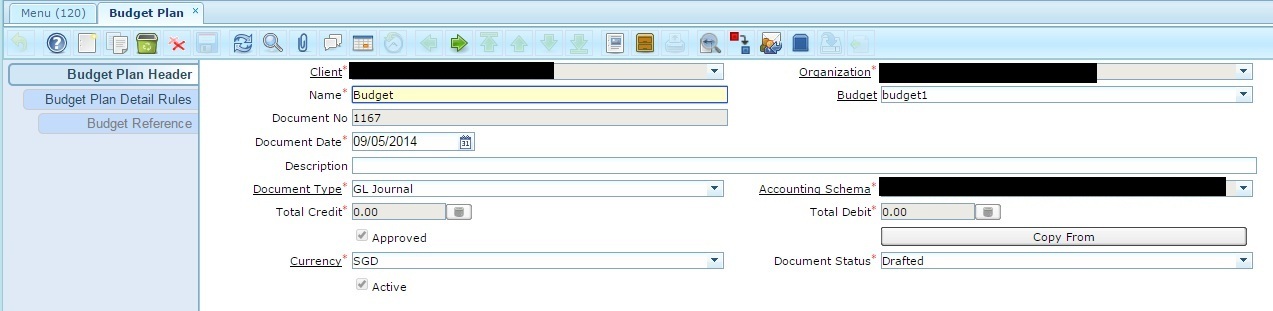
Below is how budget Plan header Looks like. You need to give Name, Accounting schema and currency etc. This is like configuration of budget plan.

1

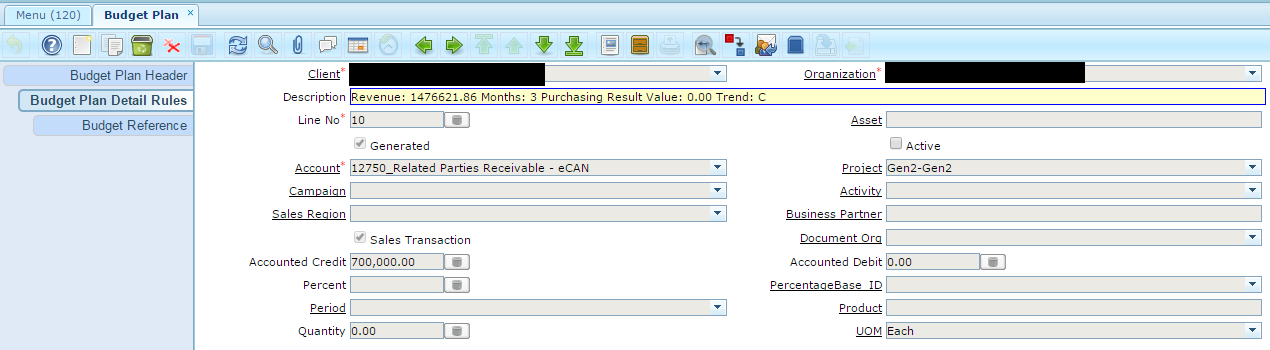
You can find Budget plan detail rules under budget plan header. This is how its looks like :

2

Here you can give different combinations of Project, Business Partner, organization etc. Like in above figure, sales budget for project Gen2 is 7,00,000. The rules defined should not conflict with each other. You can defined rule like it is for Sales/purchasing, by organization or all, by business partner or all, by period or year, by product with Qty, by Amount Cr/ Dr etc. Above work is from Red1 and you can find more detail on configuring budget plan rules and calculation detail from Budget.pdf


Budget Journal : 

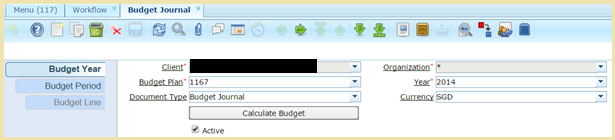
Below is how budget journal  header Looks. You need to select budget plan, year and currency.

On clicking calculate budget button, it will Auto create Budget period  and Budget line. Depending on Budget Plan detail rules, Budget period may be for year and month or both.

Budget Journal Header


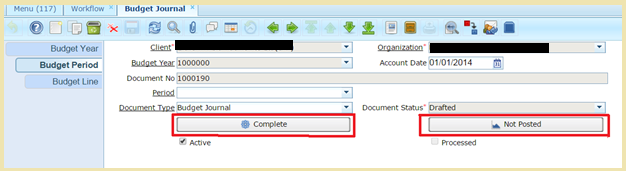
Once run Calculate Budget, can go and review budget posting for each period by navigating to budget line tab.

If confirmed that calculated value are matching expectation, can go and complete period.


adempiere idempiere budget period tab


once you complete Period, Budget period are posted in budget and can be used by workflow, reporting etc.


Share Button

User friendly and customizable DataGrid in iDempiere

Since iDempiere is forked from adempiere, it has added many feature to increase user productivity. Starting blog to introduce iDempiere features which can improve user experience on browsing data and increase work efficiency.

About iDempiere:

iDempiere is a Open Source Enterprise Resource Planning (ERP) software package. Which helps companies satisfying their ERP needs with low cost and offer flexibility to customize. iDempiere comes out of the box with every feature installed and configured to run your business. In this blog will introduce to some of cool features in data grid.

Data Grid:

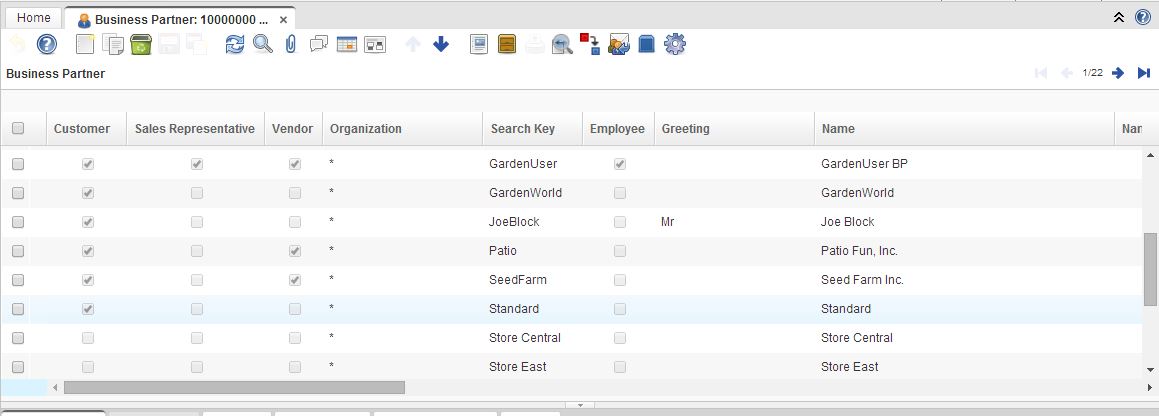
Data grid is a nice feature to view list of data in tabular format in one site. In iDempiere every window comes up with data grid. Below is snap of data grid.

basic grid view

This grid provide some of handy features like on double click of any record it will toggle to form view and user can make modification to the record. Even one can modify data inline in grid itself, click on cell you want to modify and make the changes. Nice thing is record will be automatically saved once you move to next record, you can always save record by clicking save button.

User level customization to Data Grid:

Data grid by default will show all the fields (configured with isDisplayed = Y), some of user dose not like to see everything but they would like to see only attributes which are important to them.

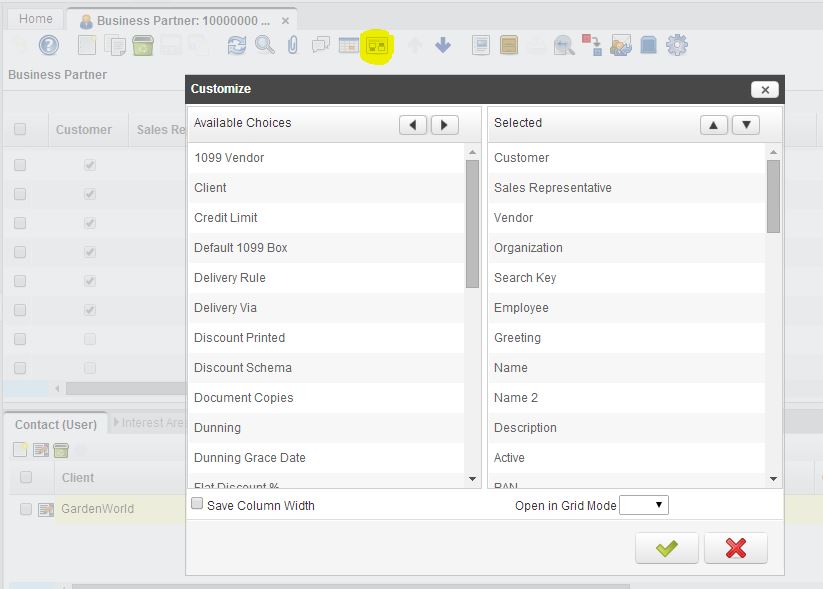
iDempiere has added a nice feature using that user can save their own customization to Grid, i.e. They can choose which columns only need to show up and also in which sequence. To achieve this what you need to do is, click on tool bar button “Customize”  (highlighted in below image) and that will pop-up below dialog.

user choice dialog view

This dialog supports drag and drop functionality so keep only attributes which you want to see in “Selected” section (right side of dialog), Also adjust sequence of selected attributes by moving them up or down. After making all this changes save the configuration.

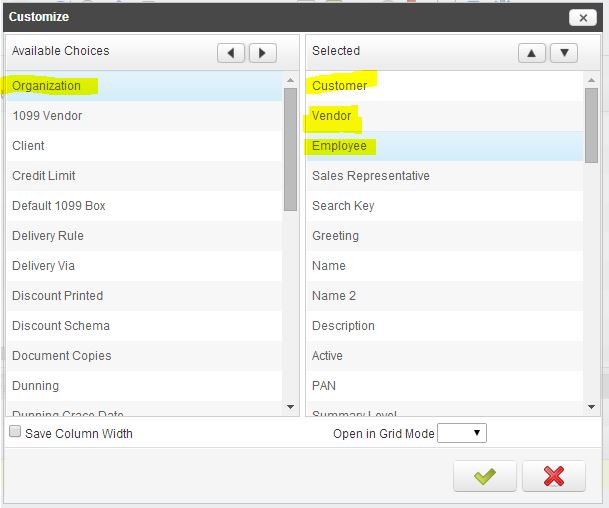
For example with reference to above screen, I am removing “Organization” column and would like to see Customer, Vendor and Employee column together. We can setting like below screen.

my changes BP

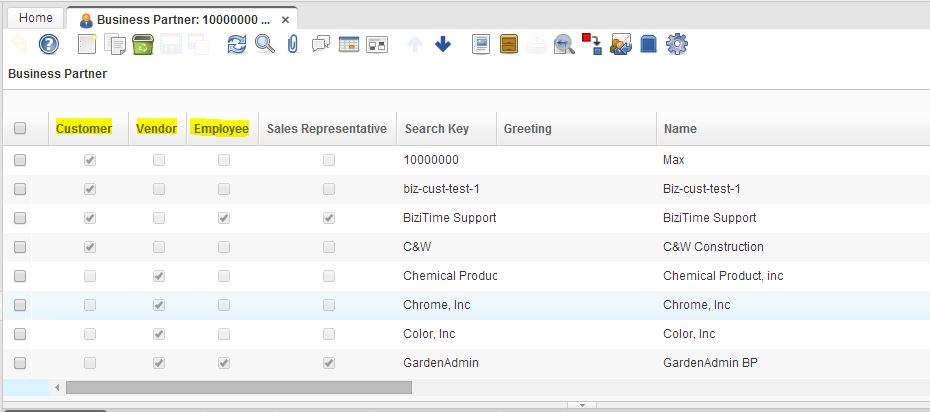
On save of configuration it will immediately re-renders data grid to reflect the changes

result of my changes to BP

When another user logs inn they can have their own set of configuration. iDempiere also allows user to save width of column, once you adjust the width to your comfort level, before saving, make a selection on check box “Save Column Width” it will save changes for you.

Set Default Mode:

If user likes to open a windows directly in Grid mode, user can set the same. on same customize dialog from where we do customization, there is a option at bottom “Open in Grid Mode”, if user set this to ”Yes”, for that window records will always open in Grid mode by default.

As a System administrator if you would like to hide some of columns in grid and do not want them to display in grid, you can achieve the same in iDempiere. For this there is a flag at each field level in iDempiere with name “IsDisplayedGrid”. If you set this to FALSE then that field will not appear on grid.

Open Source:

iDempiere is open source ERP, BUT open source dose not means CHEAP, if we dont know what to change in source code and and what will be the over all impact in all ERP modules one need to pay more in terms of money as well as time. So need to be very careful while making source code changes.

Best Regards,
Kirit @ Logilite Technologies.

Share Button

Adempiere Security Flow fixed in Adempiere380 – System Admin needs action

System admins, It is possible to protect your user’s password in Adempiere380, it needs your action.

Today morning one of my friend contacted me to raise his concerned after watching Red1 ( http://youtu.be/Eo0ufA1BY8Y) video about how to gain access to SuperUser account in case of system administrator has  not taken enough care to disable GardenWorld tenant or taken enough steps to change password of default users.

Even though that is done, Aempiere370 has security flow where user were able to watch password of other users by the way demonstrated by Red1. This was reported year back with iDempiere and issue was fixed in release1.0 of iDempiere. Adempiere380 has solution to this issue. But System admin need to take action.


Though Adempiere has not disabled “Value Preference” and “Editor” option, Paul Bowden from Adaxa’s contribution  for password hash (http://sourceforge.net/p/adempiere/contributions/212/)  will helps to mitigate this risk. After upgrading your adempiere to 380, Please follow below steps.

1. Login as System Admin

2. Look for the process named “Hash Passwords” or “Convert passwords to hashes”

Run this process, and your users passwords are now protected.

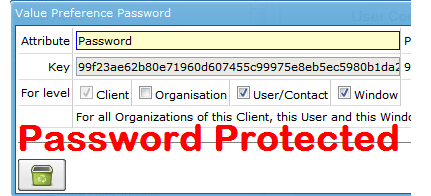
Now login as any user, try to look password of other users, you will see hashes instead of actual passwords as shown in bellow image.

ADempiere-380-Password-Protected


Special thanks to Red1 for creating video and inspiring me to write this blog and Adaxa for contributing password hashes without which it was not possible to fix this issue.

With Regards,

Deepak Pansheriya

Share Button

Easy and useful Lookup options in iDempiere


Hello dear friends, If you are using a wonderful truly open source ERP, iDempiere this blog will really help you work faster with lookup options. If you have never used this product then still not late atleast worth trying to know about its great features


About iDempiere:

iDempiere is a Open Source Enterprise Resource Planning (ERP) software package. Which helps companies satisfying their ERP needs with low cost and offer flexibility to customize.

iDempiere comes out of the box with every feature installed and configured to run your business

In my this first blog will introduce some of cool features in find window.

History records on Look up:

Usually what we do to search for record on window is click on “Lookup Record” button or  Lookup-Adempiere_Idempiere Lookup_Adempiere Idempiere Lookupuse shortcut “Alt + F”. This will allow you to search based on primary attributes e.g name, key etc.

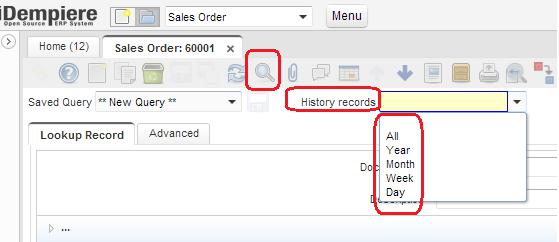
Interesting thing to note is “History records” drop down.Lookup-adempiere-Idempiere

In case you just want to search records created within same day or in last week. You just need to select that option from History records and do search, no need to enter any other detail.

Lookup-adempiere-Idempiere Lookup-Adempiere


This option can be apply on top of your search query. Means results will be fetched from selected range only.

Saving search query:

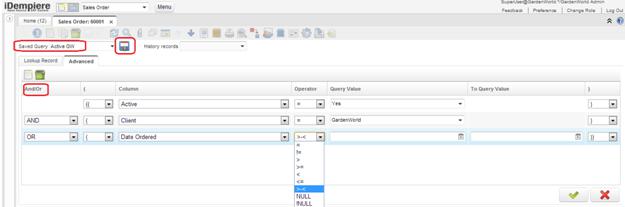
If you are searching with common attributes multiple time, no need to worry. Just create once the query and save it for future usage. This option works only with “Advanced” tab on look up window

Lookup-Adempiere-Idempiere Lookup-Adempiere Idempiere Lookup-This is very handy and easy too, Create your query as iDempiere allow you to create any combination of AND/ OR operators as shown above to locate your records.

Name your search and click on save icon. Done! Now any time you select this search option and go ahead for searching your favorite records.

History criteria, if selected will work on top of results of any your advanced searches. e.g if you are looking for orders of business partner “Peter” and selected “Week” as history criteria then orders of last week only appear for Business Partner “Peter”.

Hope these lookup handy options will help you work faster for all your work!

Advance Query building

In Advance lookup tab, iDempiere provides way to build complex queries to search for records. There is a AND/OR operators available which can be used to build multiple selection criteria with braces.

For example if we want to select All the business partner who are Customer and Vendor, Or if they are employee. We can have Advance query like

((Customer = Yes) AND (Vendor = Yes)) OR (Employee = Yes)

Best Regards,

Kirit @ Logilite Technologies.

Share Button

Window Shortcuts in ADempiere/iDempiere

“If you are working with very small set of window, form or process in adempiere and you love to work with shortcuts,
you may love this feature of Adempiere/iDempiere. I can say this as enabling command into Adempiere/iDempiere”.

This blog is in our series of improving work efficiency in Ad/iD.

The purpose of this post is to guide you to use “Search definition” menu in ADempiere which allows to configure search for easy and fast searching of records. This is a standard ADempiere functionality that lets you define exactly what action the system takes when someone enters characters in the ‘Lookup’ box on the main menu screen.

It allows two type of ‘Search Type’

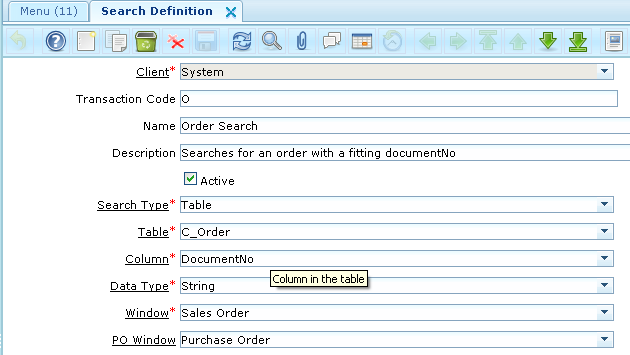
1. Table

Setup for what happens when user type ‘/o’ and enter  or ‘/o <some characters>’ and enter in Lookup box on the main menu screen

window-sortcut-adempiere-idempiere-query
Here you can find orders(sales/purchase) by entering “/O  <DocumentNo>” in Lookup Box.
Some examples shown below.
  •  ‘/O DO12345’ Open order with ‘Document No’ equals to ‘DO12345’.
  • ‘/O  SO123%’ Open  all orders whose document number starts with ‘SO123’.’
  • ‘/O’ Open  order window.

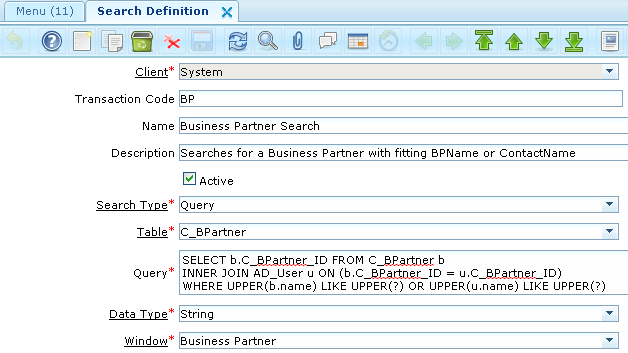
2. Query

Setup for what happens if user types ‘/BP’ or /’BP <some string>’ in Lookup box.

window-sortcut-adempiere-idempiere-table


In this type of search you can set query to search window. Above configurations allow you to search ‘Business Partner’ records by given
Business Partner Name or Contact Name.Some Examples shown below.

  • ‘/BP’ open the Business Partner window.
  • ‘/BP’ pet%’ open the BP window and bring back any records where the BP name or any contact name of BP contains ‘pet’.
Some other variants you can use:
‘/O BP’ open both Business Partner and Order window.

By using this facility you can configure search as per your requirements like configure search definition which finds all ‘Order’ records belongs to some Business Partner.

I hope this helps!

Regards,

Nikunj Panelia

Share Button