How to became a data scientist from beginner to expert ? PART – 1

graph

Let’s begin with the step’s used by the data scientist to perform his task or implement a module.

Below are the 7 major and minimal step’s to work while developing a machine learning model.


step 1. Data Gathering.

data-cleaning


step 2. Data Analysis.
data-analysis


step 3. Data Cleaning.
data-cleaning


step 4. Data Visualization.
visualization


step 5. Modelling with different statistical approach , predictable approach to solve the problem.

model


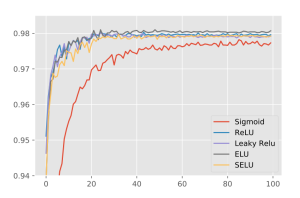
step 6. Select the model with highest accuracy.
accuracy


step 7. Deploy your first machine learning application.

deployment


Tool and Skills you must know, that will help you to design your first machine learning application for beginner.

I will explain every step’s in different single post’s with great details ,where you will learn what programming you should know , the module required to implement the machine learning application and the book’s to refer for beginner as best of my knowledge.
Stay tuned for further updates !!!!

Thanks.

Share Button

Useful monitoring tools for System Administrator in Idempiere

Idempiere has a very good administration feature called ‘Active Sessions’ window. Using this feature, System administrator can monitor all current active session which are running in the system. Additionally, system administrator can also force logout any remote user session by just clicking a button on the window. Lets go through in detail information about ‘Active sessions’ in this post.

1) Active sessions window

To access ‘Active sessions’ feature user must follow below steps.

  1. Login as System Administrator
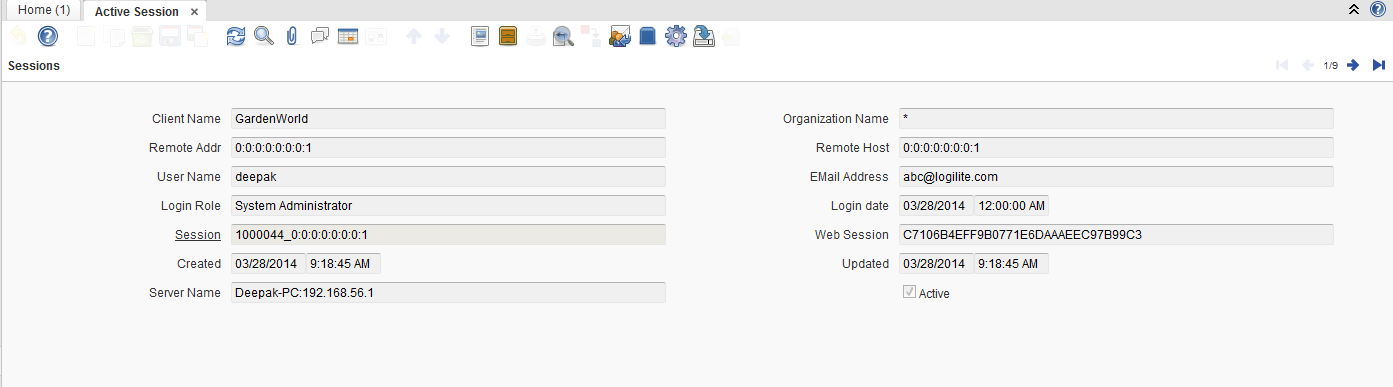
  2. Lookup for ‘Active Session’ Window and open the windowAs you can see in the screen shot, on this window, each record represents one active session. System administrator can navigate through and can monitor each active session here forĀ  information like,
    • Login User Name
    • Email Address
    • IP Address of client machine
    • Organization name
    • Client name

    1

2) Kill Active Session

System Administrator can kill any active session from ‘Active sessions’ window by just one button click.There are two modes for ending active session.

  1. Kill Current Session: the session of current record will be ended.
  2. Kill All Session: All the session including System Administrator’s login session will be ended.

Follow below steps to use this feature.

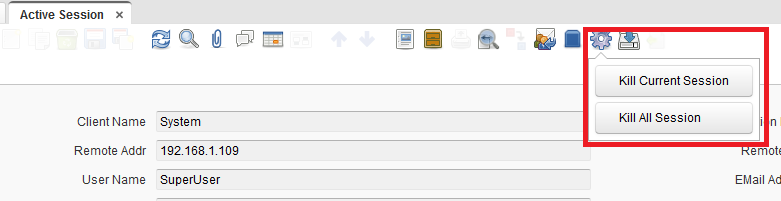
  • Click on the ‘Gear’ icon on the window toolbar (As shown in below image.)

2

  • Click on the button based on you want to run the process.
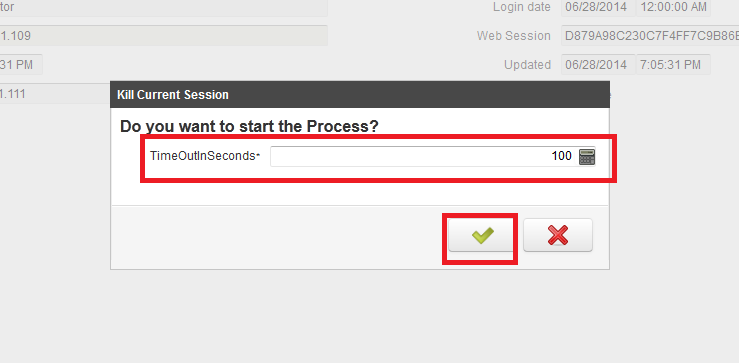
  • Enter warning time (in seconds) to the popup (As shown in below image.). and click green check button.

3


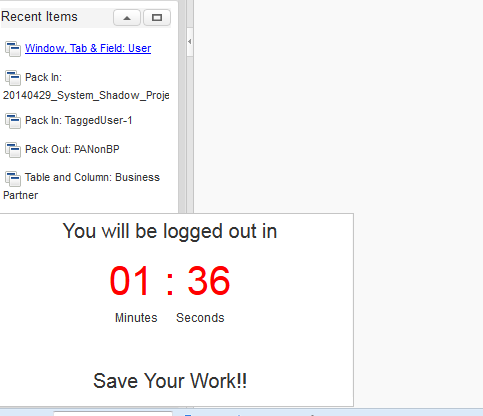
The user whose session is to be ended will be shown a countdown warning popupĀ (As shown in below image), till the warning time is entered. After That time passed user will be logged out.

4


Share Button