How to apply iDempiere database migration script in windows

iDempiere is fully supporting Windows hosting even though there are few servers hosted in windows. Latest sync script written in bash script, we can not use same in windows. But iDempiere database migration script can be applied by an ant tool. Purpose of this blog is to guide for applying iDempiere database migration script in window using ant tool.

When it comes to DB migration in windows, recently not much work done to support migration batch script. But still iDempiere has tools to achieves migration using ant script on windows. Here I would like to mention how this hidden tool used.

Perquisite to perform this steps, you needs to have Apache-ant installed and configured. You can follow steps to do same from Apache ant official page.

How to migrate iDempiere maintenance branch in windows.

iDempiere support latest release for a year and which I am referring as maintenance release. You may like to keep your server up to date if you are hosting

When I am writing this blog,  latest maintained version is 7.1 and so assuming  is to apply it as example.

  1. From migration-history directory, Copy postgresql.properties.template as postgresql.properties for PostgreSQL DB or oracle.properties.template  as oracle.properties for Oracle to migration directory.
  2.  Configure following properties
    1. postgresql.home – Path to PostgreSQL installation
    2. postgresql.database – Database name
    3. postgresql.user – Database user
    4. postgresql.password – PostgreSQL user password
    5. postgresql.host – PostgreSQL server host
    6. postgresql.port – PostgreSQL server port default is 5432

    My Property file looks as below
    #PostgreSQL home folder
    #Example Value:
    # Windows - postgresql.home=C:/pgsql/8.2.13-1<
    # Linux - postgresql.home=/usr/lib/postgresql/8.3
    postgresql.home=C:/Program Files/PostgreSQL/12/
    #PostgreSQL pgdata folder
    #Example Value:
    # Windows - postgresql.pgdata=C:/pgsql/8.2.13-1/data
    # Linux - postgresql.pgdata=/var/lib/postgresql/8.3/main
    postgresql.pgdata=
    #adempiere database name
    postgresql.database=id71t

    #adempiere database login
    postgresql.user=adempiere

    #adempiere database password
    postgresql.password=adempiere

    postgresql.host=localhost
    postgresql.port=5432

  3.  Open command prompt
  4. Change directory to migration\i7.1\postgresql or migration\i7.1\oracle directory.
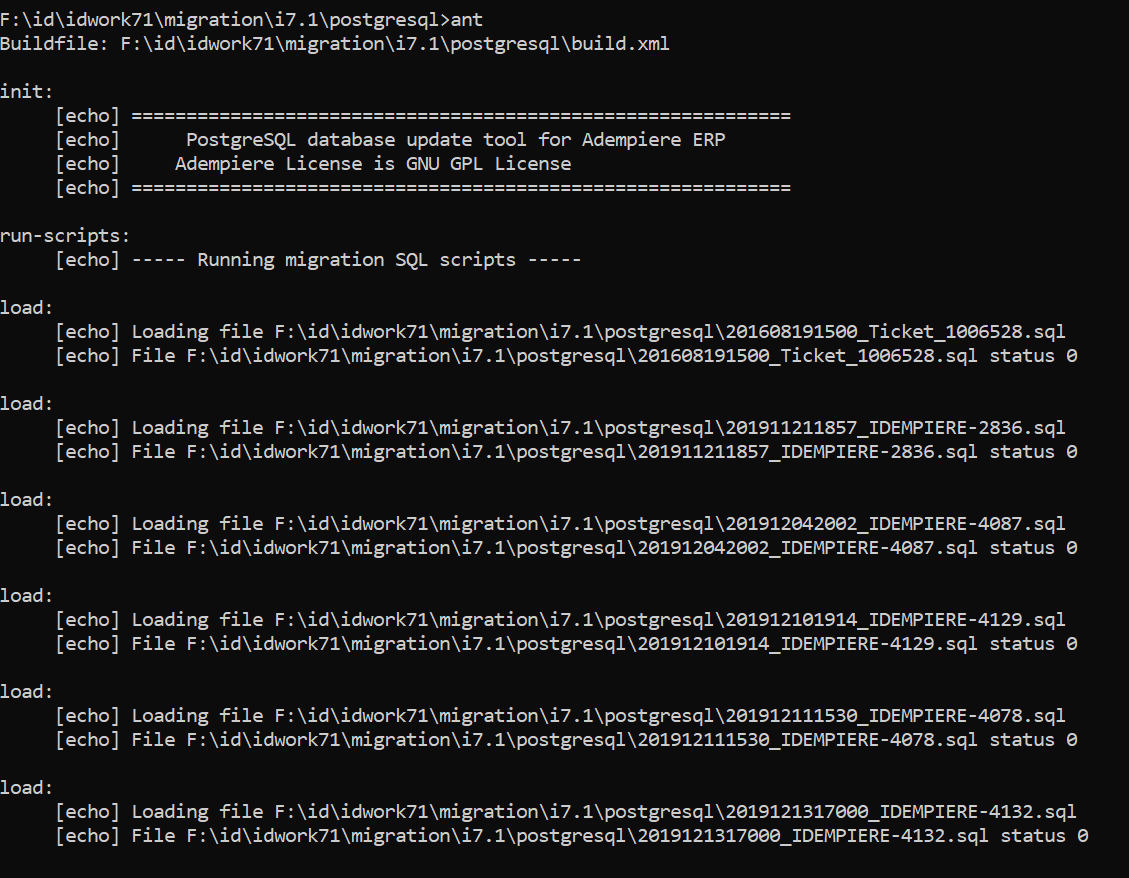
  5. Run command “ant”apply iDempiere Database Migration Script in windows
  6. Verify that all SQL are success, if any failure, you may needs to fix those migrations manually. Status 0 mean no errors.


How to migrate iDempiere from older release to latest in windows 

For example if you want to migrate from 5.1 to 7.1, you needs to apply migration script of 5.1, 5.1z , 6.1, 6.1z,  6.2, 6.2z and 7.1. We don’t have batch automation to achieve this at moment.

Now if you go to migration\i5.1z\postgresql and run ant command, It will throw error “Buildfile: build.xml does not exist!“.

To fix above error, copy build.xml from latest release version to migration script directory which you want to apply. iDempiere maintain build.xml file on maintenance version migration script directory only.

Share Button

Budget Journal – Enhanced Adempiere/iDempiere Budget module

Budgeting is tedious work when you do not have right tool. Though budgets are calculated based on historical data, there are different formula per expenses to derive. it is always viable to automate calculation of budget. For iDempiere/Adempiere first step was taken by Guru Red1 to automate calculation of budget dynamically. That was great enhancement as defining rules will warn user for over budget transaction. Logilite take red1’s work to forward and add Budget Journal features.

All accounts love journal as that give more control on posting. So this work was to add automation of creation of journal for budget based on defined rules. Now Journal is add important feature of tracking history of budget by posting against GL account also allow to review and correct budget manually too.

Red1’s work for dynamic budget validation can be referred here Budget.pdf

Budget Planning :

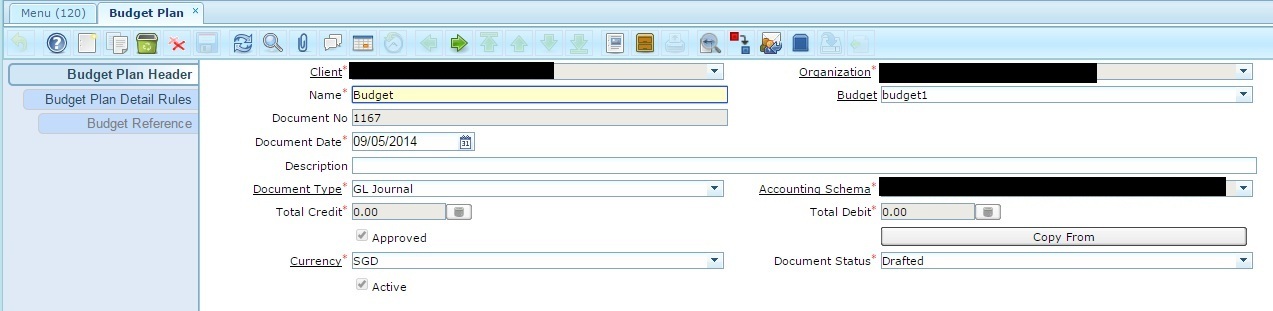
Below is how budget Plan header Looks like. You need to give Name, Accounting schema and currency etc. This is like configuration of budget plan.

1

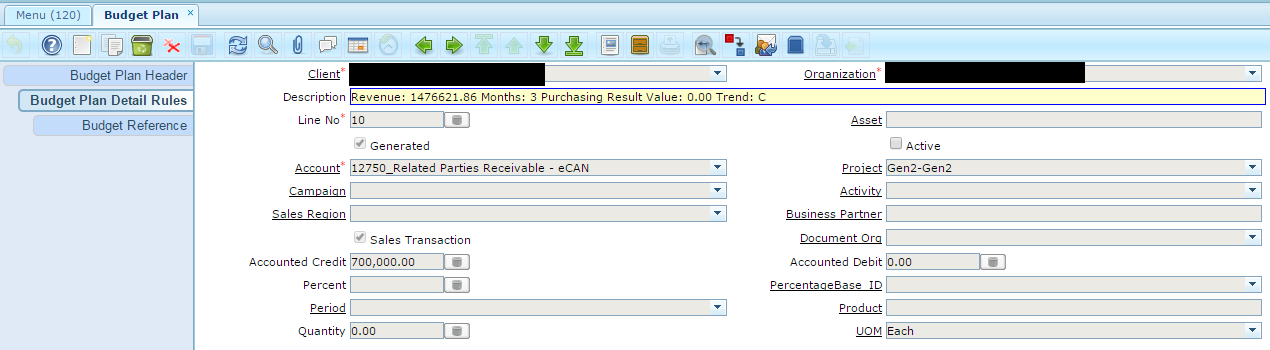
You can find Budget plan detail rules under budget plan header. This is how its looks like :

2

Here you can give different combinations of Project, Business Partner, organization etc. Like in above figure, sales budget for project Gen2 is 7,00,000. The rules defined should not conflict with each other. You can defined rule like it is for Sales/purchasing, by organization or all, by business partner or all, by period or year, by product with Qty, by Amount Cr/ Dr etc. Above work is from Red1 and you can find more detail on configuring budget plan rules and calculation detail from Budget.pdf


Budget Journal : 

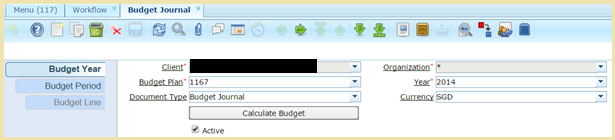
Below is how budget journal  header Looks. You need to select budget plan, year and currency.

On clicking calculate budget button, it will Auto create Budget period  and Budget line. Depending on Budget Plan detail rules, Budget period may be for year and month or both.

Budget Journal Header


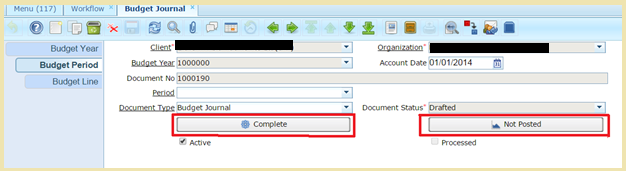
Once run Calculate Budget, can go and review budget posting for each period by navigating to budget line tab.

If confirmed that calculated value are matching expectation, can go and complete period.


adempiere idempiere budget period tab


once you complete Period, Budget period are posted in budget and can be used by workflow, reporting etc.


Share Button

Adempiere Security Flow fixed in Adempiere380 – System Admin needs action

System admins, It is possible to protect your user’s password in Adempiere380, it needs your action.

Today morning one of my friend contacted me to raise his concerned after watching Red1 ( http://youtu.be/Eo0ufA1BY8Y) video about how to gain access to SuperUser account in case of system administrator has  not taken enough care to disable GardenWorld tenant or taken enough steps to change password of default users.

Even though that is done, Aempiere370 has security flow where user were able to watch password of other users by the way demonstrated by Red1. This was reported year back with iDempiere and issue was fixed in release1.0 of iDempiere. Adempiere380 has solution to this issue. But System admin need to take action.


Though Adempiere has not disabled “Value Preference” and “Editor” option, Paul Bowden from Adaxa’s contribution  for password hash (http://sourceforge.net/p/adempiere/contributions/212/)  will helps to mitigate this risk. After upgrading your adempiere to 380, Please follow below steps.

1. Login as System Admin

2. Look for the process named “Hash Passwords” or “Convert passwords to hashes”

Run this process, and your users passwords are now protected.

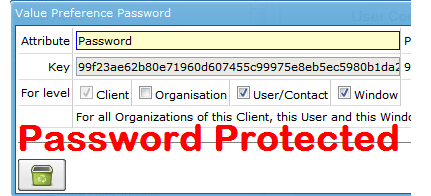
Now login as any user, try to look password of other users, you will see hashes instead of actual passwords as shown in bellow image.

ADempiere-380-Password-Protected


Special thanks to Red1 for creating video and inspiring me to write this blog and Adaxa for contributing password hashes without which it was not possible to fix this issue.

With Regards,

Deepak Pansheriya

Share Button